Cricut Design Space is one of the major tools to create designs for the Cricut project. This app is compatible with various OS such as Mac, Windows, iOS, and Android. Also, the app has got many features and runs smoothly on almost all devices. However, there could be some situations when the Cricut Design Space won’t open. The reasons could be many behind this issue. Therefore, this blog post aims to provide various effective methods to fix the Cricut Design Space won’t open issue.
Solution 1. Clear the Cache of the App
You need to clear the cache of the Cricut
Design Space app on your Windows and Mac devices.
Windows
- First,
you need to close the Cricut Design Space app on your Windows device.
- After
that, go to File Explorer and
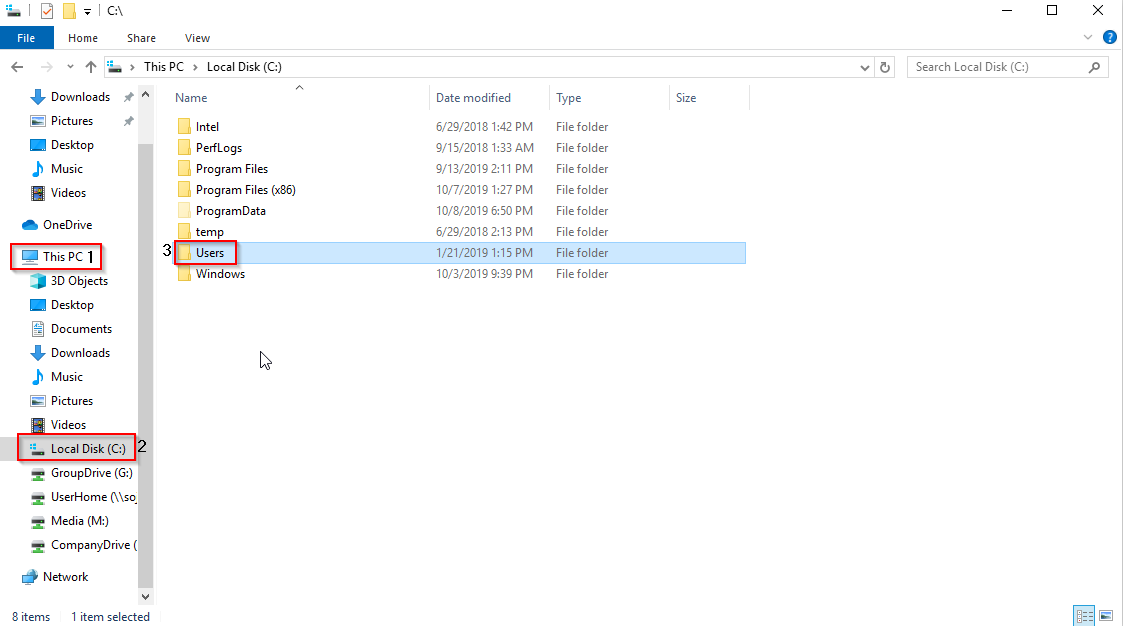
choose the This PC option from
the left side panel.
- In the
next space, Local Disk (C:) and
then go to the Users folder.

- When you
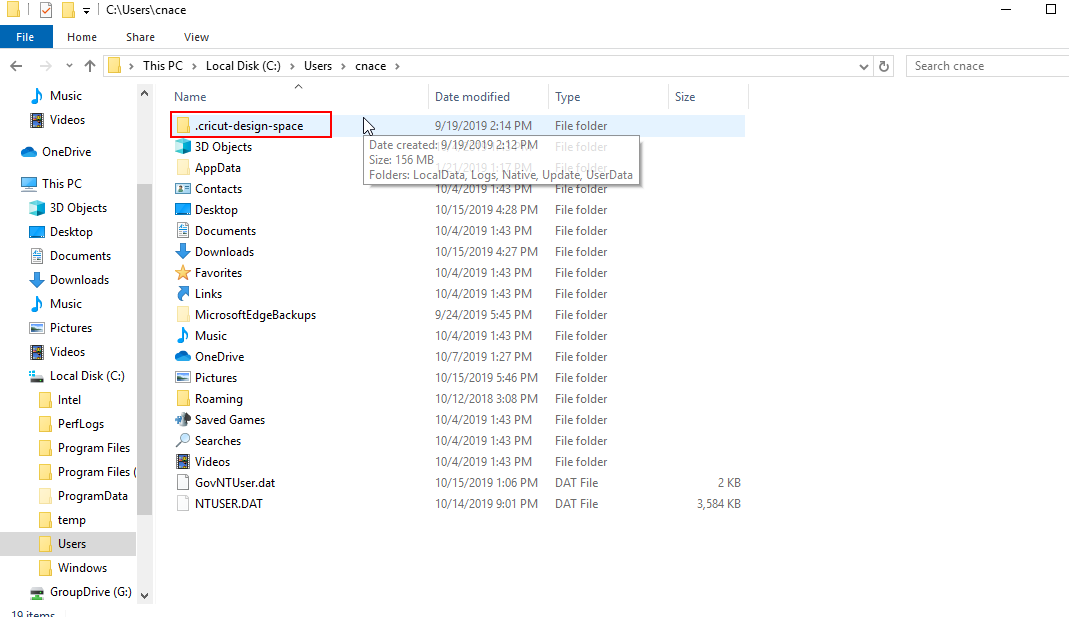
are in the user folder, you need to click on the .cricut-design-space folder.

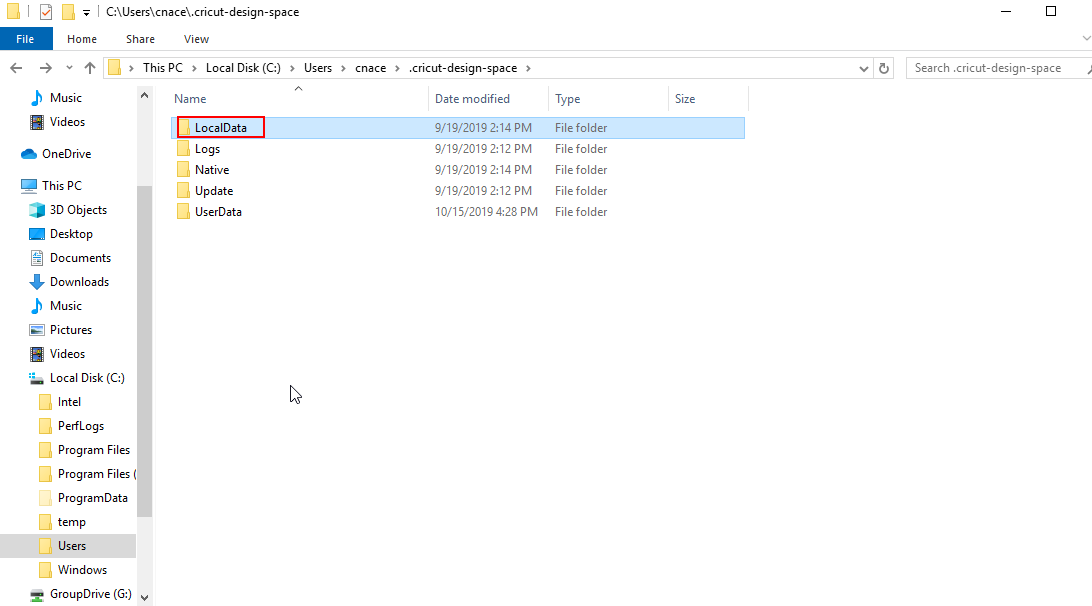
- Then,
open the LocalData in that folder.

- Afterward,
you are required to select all the files in the Local Data folder and
press the Shift+Delete buttons to delete those files permanently from your
device. (Check your recycle bin and delete the files if they are there.)
- Now, you
have to open the Cricut Design Space app on your device and choose the View option.
- Next,
choose the Force Reload option.
Mac
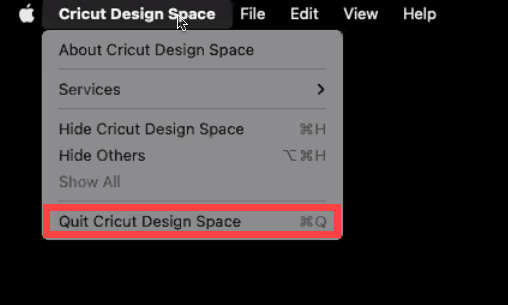
- For the
first step, you have to click on the Cricut
Design Space option and choose the Quit Cricut Design Space option.

- After
that, the Finder option will appear on the screen. (If this option is not
shown on the screen, then you need to open it.)
- For the
next step, you are required to click on the Go option and choose Home.
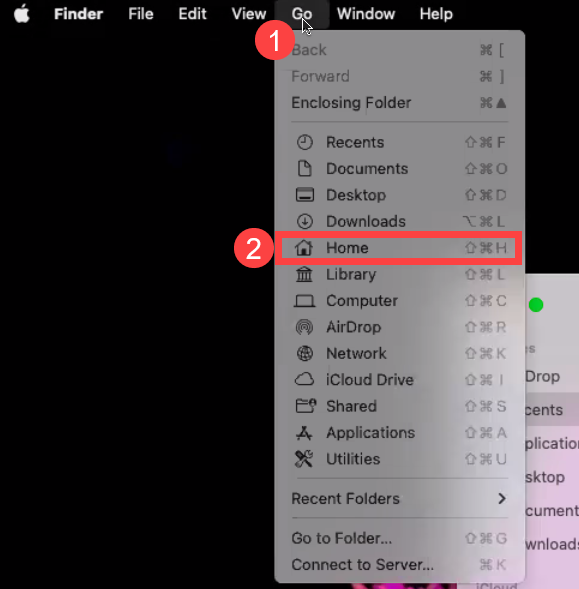
- Here you
need to check some of your user files. Press the Command and Shift keys
simultaneously and down-press the Period key. Once you press the period
key, the files will toggle between hidden and visible.
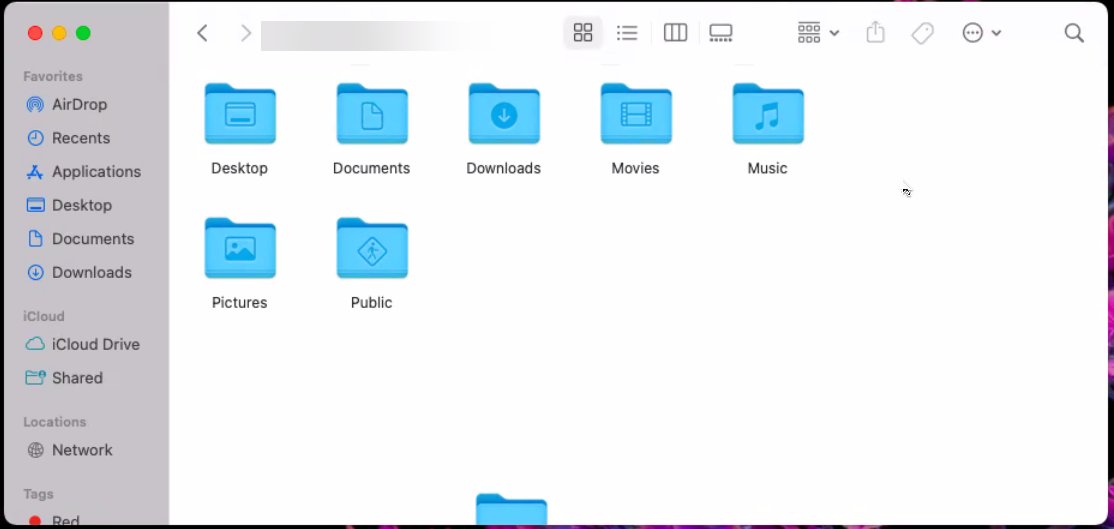

- Now, open
the greyed-out Cricut-design-space folder.
- Then head
to the LocalData folder.
- Afterward,
you have to remove all the files from that folder permanently.
- Lastly,
go to the design space app and try to Force Reload it.
Solutions 2. Make Changes in the Compatibility Settings
Sometimes the compatibility settings can also interfere with opening the app. Here is how you can fix it.
- First and
foremost, you should check if any instance of Cricut Design Space is open.
- After
that, go to the Cricut Design Space icon or shortcut and right-click on
it. And then choose Properties.
- Next,
head to the Compatibility tab.
- And then,
you are required to deselect all the compatibility settings that are
selected and choose Apply option.
- Finally,
launch the Cricut Design Space app to see if it opens.
Solutions 3. Try Uninstalling and Reinstalling the Design Space app
- Make sure
that the Design Space is closed on your desktop.
- After
that, click on the Start option
in the open the Programs option.
- And then
click on the Add or Remove programs.
(The Apps & Features window will appear on the screen)
https://help.cricut.com/hc/article_attachments/360056472373/2_search_Programs.png
- Look for
the Cricut, right-click on it, and choose the uninstall option.
- Then
confirm your action in the open prompt by choosing the Yes option.
- Now,
browse the official Cricut website on your device.
- Go to the
Download page and click on
Download Cricut Design Space. (When the download starts, the screen color
will change.)
- When the
download is complete, open the downloaded file in the same browser.
- Next,
follow the further instruction and complete the installation process.
- Enter the
Cricut ID and password, and check if it works properly.
Frequently Asked Questions (FAQs)
Can you use Cricut design without the app?
Yes, you can use the design app without the
app. You can access Cricut Design Space Web and create your designs. Also, you
can choose the option to save the projects to your computer and cloud. In
addition, you get to use all the features of the app.
Is Design Space no longer free?
Using Cricut Design Space for making
designs for the Cricut project is absolutely free. You can use all the
available features, images, and text without paying a single penny. However, if
you want to use advanced features and more images or fonts, you can take the
Cricut Access subscription.
How do I update Cricut design space on Windows?
Here are the steps to update the Cricut
Design Space on your Windows device.
- Firstly,
sign into your Cricut Design Space app and connect to the Cricut Machine.
- Next,
click on the account menu (Three bars) in the upper left corner of the
screen.
Comments
Post a Comment