Cricut Design Space, or
Cricut software, is a free software application that provides access to various
designs and fonts for creating DIY crafts. It is compatible with the popular
Cricut machine and offers an easy-to-use interface, especially for beginners.
Design Space allows users to customize and cut a variety of materials like
vinyl, cardstock, and fabric. Whether you're using Windows, Mac, iOS, or
Android, you can set up Cricut Design Space on your device and Cricut machine
by following these steps. Let's get started with a
complete setup guide on how to download
Cricut software.
What is Cricut Software?
Cricut software is known
as Cricut Design Space. Setting up Cricut Design Space is a must for running
your Cricut machine effectively. Design Space unlocks the full potential of
your machine, offering a range of features for seamless crafting. It ensures
precise cutting and provides offline editing capabilities, allowing you to
access your saved projects without an internet connection. This feature is
specifically useful for users who often work on DIY crafts.
Design Space enhances
your workflow, especially when handling large projects, improving overall
performance. Now, let's dive into the step-by-step guide for setting up Cricut
Design Space on your device. While Design Space can be installed on any device,
a desktop computer is recommended due to its powerful processor and higher
memory capacity.
How to Download Cricut Software on a Computer?
The process to download
Design Space is straightforward. You are required to visit Cricut's official
website and get the Design Space downloaded. The file will be saved on your
computer at a specific location from which you must extract it.
The good thing is that
you can download and install it on any operating system, whatever suits you.
However, it doesn't work with Chromebooks. But apart from it, you can use it
with your computer, laptop, or even a mobile device.
For Windows
- Open an internet browser on your Windows and search design.cricut.com.

- Then, tap Download.
Now wait until the screen changes during the file download. This process
will be different on every browser.

- Once your file is downloaded, choose the downloaded
file in your system's Downloads
folder and launch it.

- Then, you may see a window asking you to trust the
application. Select an option to trust the application.
- After that, you will see a window asking you for installation.

- Next, use your
Cricut ID and Password to sign
in to your Cricut account.

- Now, an icon for Design Space will be added to your
desktop. Then, right-click on that icon and select Pin to Taskbar. Or you can drag that icon to the taskbar to
create a shortcut.
- In the last step, you can work with your Design
Space.
By following these
steps, one can easily download Cricut Design Space on their Windows system. The
Design Space isn't limited to only Windows; you can download it on any device.
For Mac
- Go to an internet browser on your Mac and search design.cricut.com.

- Then, tap Download.
Look for any changes the screen makes as different browsers change the
screen.

- When you download the file completely, tap on that
file by moving to the Downloads folder to extract it.

- Next, launch the installer that your screen shows.
- Select and drag the Cricut icon to your Applications folder to start the
installation.

- Now, choose Cricut
Design Space from the Applications
folder and open it. You can also drag the Design Space app to the dock
to create a shortcut.

- Then, your Mac may ask you to open the application
you downloaded earlier. Choose Open
to proceed.

- Use your Cricut
ID and password to sign in
with your Cricut account.

- Finally, you have successfully downloaded Design
Space on your Mac.
So, these were the steps
to get the Cricut app on your Mac system. Similarly, you can get the
app on your mobile
devices as well.
How to Download Cricut Software on a Mobile Device?
In order to download the Cricut Design Space
software on your iOS and Android device, follow these steps:
For Android
- On your Android device, go to Google Play Store and launch it.

- Navigate to the Cricut Design Space, designed as a
white square with a green C logo.
- Now, click the Install
button to get that app downloaded and installed.

- When the installation is done, you can see the app
on your App Home Screen.
- Then, click on your icon to launch the Design Space
app.

- Now, sign in to your Cricut account and start anything with it.
This is how you can
easily install the Cricut Design app on your Android device. A similar thing
you need to do with your iOS device.
For iOS
- On your iOS, go to the App Store from your home screen to launch the app.

- Navigate to Cricut Design Space, a white square with
a green C logo inside it.
- Then, click the Get
button to download the app.
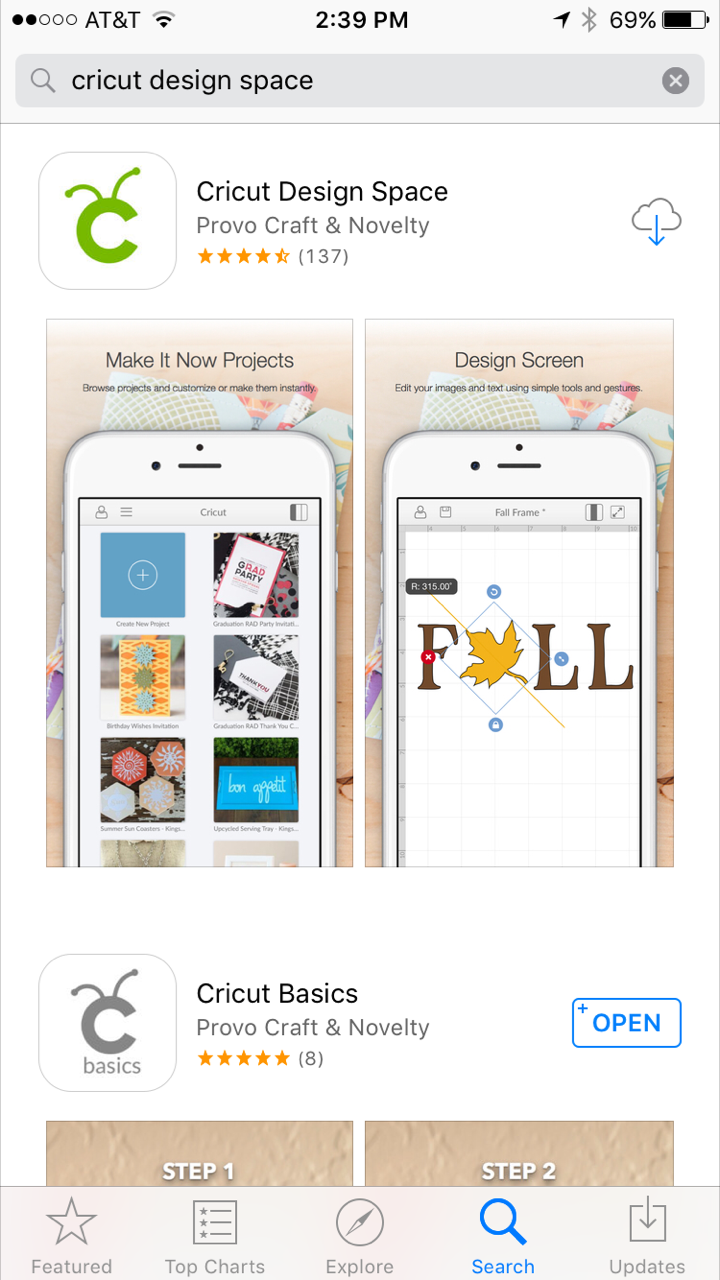

- When the Download is complete, Design Space will
open and show two options- complete the new machine setup and App
Overview.

- Next, click the cross
sign on the top of the options.
- You have successfully downloaded Design Space on
your iOS device.
These were the easy
steps to get Cricut software or the Design Space app to download on your iOS
device.
Conclusion
We learned how to download Cricut software or
Design Space. The Cricut Design app is an essential tool for accessing the
Cricut machines. Hence, all users should download and install it on their
desktop or mobile device. But before that, you must ensure your device is
compatible with Design Space. Each device has its own minimum system
requirements to run the Design Space. Hence, first, ensure that first and then
move to install it on your device.
Once you have installed
the software on your device, enjoy your regular crafting and DIY projects. So,
get ready with your Design Space and start making something beautiful.
Source URL: - How to Download Cricut Software
Visit - Cricut.com/setup
Comments
Post a Comment